Mastering GPIO on STM32 Blue Pill: The Modern Way with Rust
Before you begin this tutorial, make sure you have read the previous article on Setting Up the STM32F103C8 with Rust, as the Rust project structure and hardware used in this tutorial are identical to those in that post. To help you better understand the Rust code presented here, line-by-line explanations are provided within the code comments.
The STM32F103C8 is equipped with programmable GPIO (General Purpose Input Output) peripherals that can be tailored to specific requirements. Each GPIO pin can be configured as an input, an output, or an alternate peripheral function. This tutorial focuses on programming the STM32F103C8 GPIO as input and output, while alternate peripheral functions (PWM, UART, SPI, etc.) will be covered in detail in subsequent articles.
Hardware Preparation
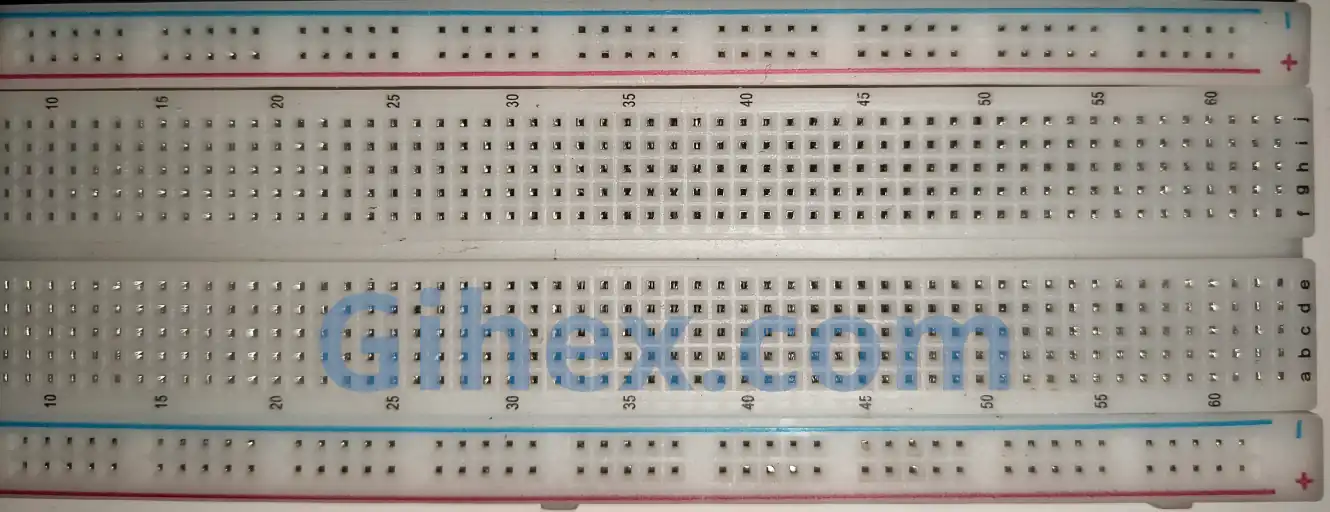
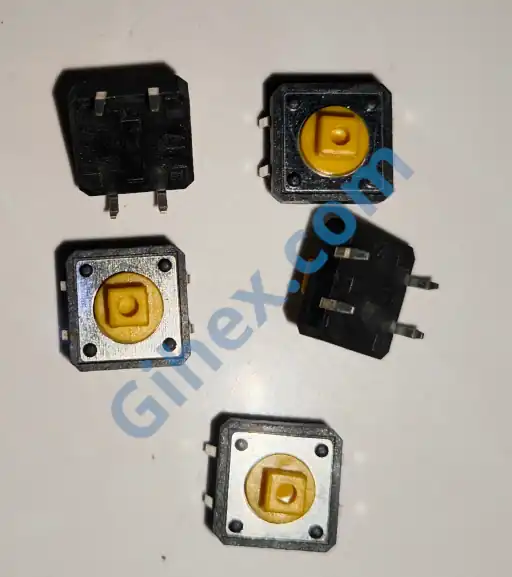
In addition to the hardware mentioned in the previous article, this tutorial will also utilize some additional hardware, including a Breadboard, a Push Button, and several male-to-male jumper wires to build the circuit on the breadboard.
Breadboard
A Breadboard (also known as a Project Board) is a board used for creating electronic circuit prototypes. By using a breadboard, circuit prototypes can be built faster and more neatly without the need for soldering.
Push Button
The push button will be used as an input to the STM32F103C8 GPIO pin. When pressed, the two terminals of the push button will connect, allowing electric current to flow between them.
Programming STM32F103C8 GPIO as Output with Rust
When configured as an output, a GPIO pin acts as an electrical signal pathway out of the microcontroller to control other devices (such as relays, transistors, small LEDs, etc.). On the STM32F103C8, the output pin voltage is 3.3V, with a recommended current of 8 mA per pin—except for pins PC13, PC14, and PC15, which can only source up to 3 mA. Therefore, if you need to control high-current or higher-voltage devices, additional components such as relays or transistors must be used.
Configuring STM32F103C8 GPIO Pins as Output
When used as an output, the STM32F103C8 GPIO pins can be configured into two modes:
- Push-Pull Output: When the pin is set to logic HIGH, it connects to VCC, allowing it to provide electrical current (Source). Conversely, when set to logic LOW, the pin connects to GND, drawing electrical current into it (Sink).
- Open-Drain Output: When the pin is set to logic HIGH, it is not connected to either VCC or GND (floating). When set to logic LOW, the pin connects to GND and will draw electrical current into it (Sink).
Programming STM32F103C8 GPIO Pins as Output
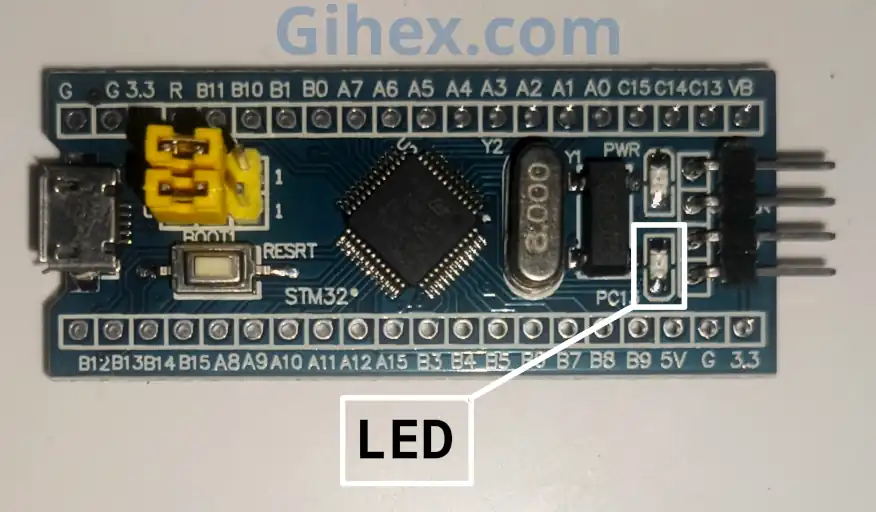
Pada bagian ini akan dijelaskan bagaimana caranya mengonfigurasi pin GPIO STM32F103C8 sebagai output menggunakan bahasa Rust untuk mengontrol on dan off builtin LED pada board STM32F103C8 Blue Pill. Builtin LED pada board Blue Pill terhubung ke pin PC13 dan active-low, artinya LED akan menyala ketika pin diatur ke logika LOW.
First, create a new embedded Rust project following the steps in the previous article. In this Rust project, open the Cargo.toml file and add the following code to define a new executable binary output named gpio-output:
1[[bin]]
2name = "gpio-output"
3path = "src/main.rs"
4test = false
5bench = false
Next, open the src/main.rs file and replace its contents with the following code:
Rust
1#![no_std]
2#![no_main]
Configures the Rust toolchain to disable the standard library and ensures the program runs directly on the hardware without an operating system (bare-metal).
Rust
 1use defmt_rtt as _;
 2use panic_probe as _;
 3
 4use cortex_m::delay::Delay;
 5use cortex_m_rt::entry;
 6use stm32f1xx_hal::{
 7    flash::FlashExt,
 8    gpio::GpioExt,
 9    pac,
10    rcc::{Config, RccExt},
11    time::Hertz,
12};
Defines all the libraries that will be used in the project.
Rust
1#[entry]
2fn main() -> ! {
3    // Logic code
4}
Creates the main function, which serves as the entry point of the program execution. The main function must use the entry macro to be recognized as the starting point.
Rust
1defmt::println!("STM32F103C8 GPIO as Output");Sends a message to the PC/laptop to indicate that the program is running the GPIO Output routine.
Rust
1// Accessing STM32F103C8 peripherals
2let dp = pac::Peripherals::take().unwrap();
3
4// Accessing STM32F103C8 core peripherals (Cortex-M3)
5let cp = pac::CorePeripherals::take().unwrap();
Accesses the STM32F103C8 peripherals and core peripherals (Cortex-M3 CPU).
Rust
 1// Accessing the FLASH peripheral to adjust memory 'wait states'
 2// during Clock configuration.
 3let mut flash = dp.FLASH.constrain();
 4
 5// Accessing the Reset and Clock Control (RCC) peripheral
 6// for configuration
 7let rcc = dp.RCC.constrain();
 8
 9// Creating the Reset and Clock Control (RCC) configuration
10let clock_config = Config::default()
11    // Using an 8MHz external clock
12    .use_hse(Hertz::MHz(8))
13    // Setting the CPU frequency to 72MHz
14    .sysclk(Hertz::MHz(72))
15    // Setting the BUS frequency (SRAM and FLASH access path) to 72MHz
16    .hclk(Hertz::MHz(72));
17
18// Applying the clock configuration to the RCC and
19// adjusting the flash memory 'wait states'
20let mut clocks = rcc.freeze(clock_config, &mut flash.acr);
Accesses the FLASH and Reset & Control Clock peripherals, then configures them to use an 8 MHz external clock, a 72 MHz system clock, and a 72 MHz Advance High-Performance Bus (AHB) clock.
Rust
1// Creating a delay instance using the System Timer.
2let mut delay = Delay::new(cp.SYST, clocks.clocks.hclk().to_Hz());
Creates a delay instance using the System Timer (SysTick), which is a core peripheral of the Cortex-M3 CPU.
Rust
1// Accessing the GPIO Port C peripheral
2let mut gpioc = dp.GPIOC.split(&mut clocks);
3
4// Setting GPIOC pin 13 (PC13) as an open-drain output to
5// turn the LED on and off. (crl: pins 0-7; crh: pins 8-15)
6let mut led = gpioc.pc13.into_open_drain_output(&mut gpioc.crh);
Accesses the GPIO Port C peripheral and configures pin PC13 as an open-drain output to control the LED.
Rust
1// Wait 5 seconds and check whether the LED is on or off?
2defmt::println!("Default logic value of pin output:");
3defmt::println!("\tlow: {}", led.is_set_low());
4defmt::println!("\thigh: {}", led.is_set_high());
5delay.delay_ms(5000);
Sends a message containing the status of pin PC13 to the PC/laptop, then pauses the execution for 5 seconds.
Rust
 1// The program will run repeatedly inside this loop
 2loop {
 3    // Sending a message to the PC/laptop
 4    defmt::println!("LED off");
 5    // Set the LED pin (PC13) to logcial HIGH
 6    led.set_high();
 7    // 2-second delay
 8    delay.delay_ms(2000);
 9
10    // Sending a message to the PC/laptop
11    defmt::println!("LED on");
12    // Set the LED pin (PC13) to logical LOW
13    led.set_low();
14    // 2-second delay
15    delay.delay_ms(2000);
16}
Creates a ’loop’ block where the program executes continuously. Inside this loop, pin PC13 is driven to logical HIGH to turn off the LED. After a 2-second delay, pin PC13 is driven LOW to turn the LED on, followed by another 2-second delay. This sequence repeats indefinitely within the ’loop’ block.
The Gihex website relies on revenue from Smartlink/Directlink advertisements for its operational costs. To display the complete code for “GPIO as Output using Rust”, simply click the following Smartlink/Directlink button:
UnlockRun the program by executing the command ‘cargo run --bin gpio-output’ in the VSCode terminal. The following is the output of the program:
When pin PC13 is set to HIGH, the pin becomes floating (disconnected from both VCC and GND), resulting in no current flow and the LED remaining off. Conversely, when pin PC13 is set to LOW, the pin connects to GND, allowing current to flow to GND and turning the LED on.
Pro Tip: To stop the debugging process in the PC/laptop terminal, you can press the CTRL+C keys on your keyboard simultaneously.
The output also indicates that by default, the output pin is at logical LOW, causing the LED to turn on as soon as the microcontroller boots up. This behavior can be highly hazardous when controlling active-low devices, as they will immediately activate upon microcontroller power-up. To resolve this issue, the code on line 56 can be replaced with the following snippet:
1let mut led = gpioc
2        .pc13
3        // pin as output open-drain with initial state HIGH
4        .into_open_drain_output_with_state(&mut gpioc.crh, PinState::High);
By using this code, the PC13 pin will immediately be set to HIGH when configured as an output, ensuring the LED does not turn ON at startup.
Actually, we can also use the push-pull output mode by replacing the code on line 56 with the following: Next, to test the push-pull output mode, replace the code on line 56 once again with the following snippet:
1let mut led = gpioc
2        .pc13
3        // pin as output push-pull with initial state HIGH
4        .into_push_pull_output_with_state(&mut gpioc.crh, PinState::High);
When pin PC13 is set to HIGH, the pin connects to VCC, resulting in no potential difference between the anode and cathode of the LED; thus, no current flows and the LED remains off. Conversely, when pin PC13 is set to LOW, the pin connects to GND, allowing current to flow to GND and turning the LED on.
Warning: Ketika menggunakan mode push-pull untuk mengontrol perangkat yang menggunakan VCC>3.3V maka akan memunculkan beda potensial, sehingga perangkat mungkin akan tetap menyala meskipun pin sudah diatur ke
HIGH.
Programming STM32F103C8 GPIO as Input with Rust
A GPIO pin configured as an input serves to read voltage levels from external devices. The standard voltage tolerance for STM32F103C8 pins is a maximum of 3.6V. However, several specific pins are 5V-tolerant; for more detailed information, please refer to the STM32F103C8 datasheet.
Configuring STM32F103C8 GPIO Pins as Input
When used as an input, the STM32F103C8 GPIO pins can be configured into four modes:
- Floating Input: The pin is not connected to any internal pull-up or pull-down resistors. To use this mode, the external device must provide its own voltage conditioning to the pin; otherwise, the input value will be noisy (constantly fluctuating).
- Input Pull-Up: The pin is connected to an internal pull-up resistor (connected to VCC), making its default state HIGH. To change the state, the pin must be connected to GND.
- Input Pull-Down: The pin is connected to an internal pull-down resistor (connected to GND), making its default state LOW. To change the state, the pin must be supplied with 3.3V (or 5V if the pin is 5V-tolerant).
- Analog Input: The pin is connected to the ADC (Analog-to-Digital Converter) peripheral to read the digital value of the applied voltage. The STM32F103C8 ADC has a 12-bit resolution (0-4095): an input voltage of 0V produces a digital value of 0, while an input voltage of 3.3V produces a digital value of 4095.
Warning: When a 5V-tolerant GPIO pin on the STM32F103C8 is switched to Analog Input mode, it can only accept a maximum voltage of 3.3V. Applying 5V in this mode may potentially damage the pin and will result in inaccurate ADC readings.
Configuring STM32F103C8 GPIO Pins as Input Pull-Up
This section explains how to configure an STM32F103C8 GPIO pin as a pull-up input, utilizing a push button to provide input to GPIO pin PB0. First, assemble the STM32F103C8 microcontroller and the push button on the breadboard according to the following schematic diagram:
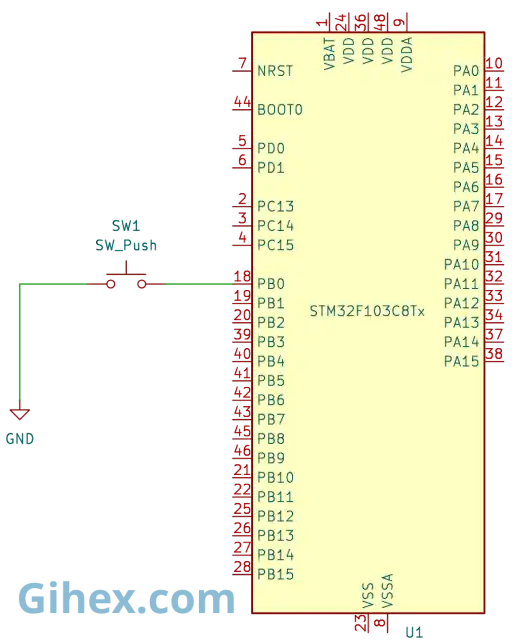
In this circuit, when the push button is pressed, pin PB0 connects to GND, pulling its value LOW. Therefore, the program must configure pin PB0 as a Pull-Up Input to reliably detect the voltage change when the button is pressed.
Next, open the Cargo.toml file in the newly created Rust project and add the following code to define a new binary output:
1[[bin]]
2name = "gpio-input-pullup"
3path = "src/input_pullup.rs"
4test = false
5bench = false
Pro Tip: By adding
[[bin]]configurations, a Rust project can host multiple executable files. This is highly useful for organizing different experiments or tutorials—such as having one file for ‘LED Blink’ and another for ‘Push Button Input’—without the need to create separate projects.
Create a file named src/input_pullup.rs and fill it with the following code:
 1#![no_std]
 2#![no_main]
 3
 4use defmt_rtt as _;
 5use panic_probe as _;
 6
 7use cortex_m::delay::Delay;
 8use cortex_m_rt::entry;
 9use stm32f1xx_hal::{
10    flash::FlashExt,
11    gpio::GpioExt,
12    pac,
13    rcc::{Config, RccExt},
14    time::Hertz,
15};
16
17#[entry]
18fn main() -> ! {
19    defmt::println!("STM32F103C8 Access GPIO as Input Pull Up");
20
21    // Access STM32F103C8 device peripherals
22    let dp = pac::Peripherals::take().unwrap();
23
24    // Access STM32F103C8 core peripherals (Cortex-M3)
25    let cp = pac::CorePeripherals::take().unwrap();
26
27    // Access the FLASH peripheral to adjust memory 'wait states'
28    // during clock configuration.
29    let mut flash = dp.FLASH.constrain();
30
31    // Access the Reset & Control Clock (RCC) peripheral for configuration
32    let rcc = dp.RCC.constrain();
33
34    // Create the Reset & Control Clock (RCC) configuration
35    let clock_config = Config::default()
36        // Use an external 8MHz crystal (HSE)
37        .use_hse(Hertz::MHz(8))
38        // Set CPU frequency to 72MHz
39        .sysclk(Hertz::MHz(72))
40        // Set BUS frequency (SRAM and FLASH access path) to 72MHz
41        .hclk(Hertz::MHz(72));
42
43    // Apply the clock configuration to the RCC and
44    // adjust flash memory wait states
45    let mut clocks = rcc.freeze(clock_config, &mut flash.acr);
46
47    // Create a delay instance using the System Timer (SysTick)
48    let mut delay = Delay::new(cp.SYST, clocks.clocks.hclk().to_Hz());
49
50    // Access the GPIO Port B peripheral
51    let mut gpiob = dp.GPIOB.split(&mut clocks);
52
53    // Configure pin PB0 as an input pull-up
54    let button_pullup = gpiob.pb0.into_pull_up_input(&mut gpiob.crl);
55
56    // Wait for 50ms (initial stabilization)
57    delay.delay_ms(50);
58
59    loop {
60        // Check if the button is pressed; if so, PB0 will be LOW
61        if button_pullup.is_low() {
62            // Send message to PC/laptop
63            defmt::println!("button_pullup is pressed");
64            // Delay for 500ms to avoid multiple triggers (simple debouncing)
65            delay.delay_ms(500);
66        }
67    }
68}
Run the program by typing the ‘cargo run --bin gpio-input-pullup’ command in the VSCode terminal and try pressing the push button. The following is the output of the program:
Programming STM32F103C8 GPIO Pins as Input Pull-Down
Pin PB0 can also be configured as a Pull-Down Input; however, the push button circuit must be modified. Instead of connecting to GND, it now connects to VCC or 3.3V, as shown in the following schematic diagram:
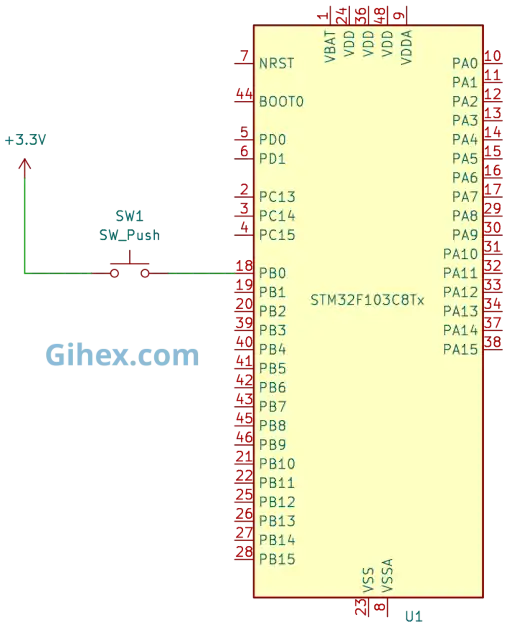
Open Cargo.toml file then add the following code:
1[[bin]]
2name = "gpio-input-pulldown"
3path = "src/input_pulldown.rs"
4test = false
5bench = false
When the push button is pressed, pin PB0 will read as HIGH; conversely, when it is not pressed, it will read as LOW. Please create a file named src/input_pulldown.rs and fill it with the following code:
 1#![no_std]
 2#![no_main]
 3
 4use defmt_rtt as _;
 5use panic_probe as _;
 6
 7use cortex_m::delay::Delay;
 8use cortex_m_rt::entry;
 9use stm32f1xx_hal::{
10    flash::FlashExt,
11    gpio::GpioExt,
12    pac,
13    rcc::{Config, RccExt},
14    time::Hertz,
15};
16
17#[entry]
18fn main() -> ! {
19    defmt::println!("STM32F103C8 Access GPIO as Input Pull Down");
20
21    // Access STM32F103C8 device peripherals
22    let dp = pac::Peripherals::take().unwrap();
23
24    // Access STM32F103C8 core peripherals (Cortex-M3)
25    let cp = pac::CorePeripherals::take().unwrap();
26
27    // Access the FLASH peripheral to adjust 'wait states'
28    // during clock configuration.
29    let mut flash = dp.FLASH.constrain();
30
31    // Access the Reset & Control Clock (RCC) peripheral for configuration
32    let rcc = dp.RCC.constrain();
33
34    // Create the Reset & Control Clock (RCC) configuration
35    let clock_config = Config::default()
36        // Use an external 8MHz crystal (HSE)
37        .use_hse(Hertz::MHz(8))
38        // Set CPU frequency to 72MHz
39        .sysclk(Hertz::MHz(72))
40        // Set BUS frequency (SRAM and FLASH access path) to 72MHz
41        .hclk(Hertz::MHz(72));
42
43    // Apply the clock configuration to the RCC and
44    // adjust flash memory wait states
45    let mut clocks = rcc.freeze(clock_config, &mut flash.acr);
46
47    // Create a delay instance using the System Timer (SysTick)
48    let mut delay = Delay::new(cp.SYST, clocks.clocks.hclk().to_Hz());
49
50    // Access the GPIO Port B peripheral
51    let mut gpiob = dp.GPIOB.split(&mut clocks);
52
53    // Configure pin PB0 as an input pull-down
54    let button_pulldown = gpiob.pb0.into_pull_down_input(&mut gpiob.crl);
55
56    // Wait for 50ms (initial stabilization)
57    delay.delay_ms(50);
58
59    loop {
60        // Check if the button is pressed; PB0 will be HIGH in this state
61        if button_pulldown.is_high() {
62            // Send message to PC/laptop
63            defmt::println!("button_pulldown is pressed");
64            // Delay for 500ms (simple debouncing)
65            delay.delay_ms(500);
66        }
67    }
68}
Please try running the program using the ‘cargo run --bin gpio-input-pulldown’ command, then press the push button and observe the results for yourself.
Common Issues and Solutions
The following are the issues encountered during the creation of this tutorial:
- Ghost Triggering: When configuring the STM32F103C8 GPIO pins as an input pull-up, the push button sometimes acts as if it is being pressed when the program first starts, even though no one has touched it. To resolve this issue, add a delay of approximately 50ms after configuring the pins or before entering the main loop.
If you encounter any other issues or have any questions, critiques, or suggestions, please feel free to reach out to me via contact page.
For your convenience, the source code used in this tutorial is available on our 🔒Github repository .