How to Setup STM32 Blue Pill (STM32F103C8) with Rust on Linux: A Complete Guide for Beginners
The STM32F103C8 is a high-spec microcontroller that is widely available on the market. While it is commonly programmed using C or C++, this time we will explore programming it with Rust, a language renowned for its memory safety features.
This tutorial will focus on preparing the hardware and software required to program the STM32F103C8 using the Rust programming language on Linux. We will be using the Fedora Linux distribution; however, if you are using a different distribution, you may need to adjust the Software Setup section accordingly. This tutorial will guide you through hardware preparation, software setup, and finally executing a Rust program on the STM32F103C8. You can also use other STM32F103 variant microcontrollers; you will just need to adjust the memory linker script (memory.x) accordingly.
Hardware Preparation
The hardware required for this tutorial includes the STM32F103C8 (of course), an ST-LINK USB Downloader/Debugger, and several jumper wires (female-to-female) to connect the STM32F103C8 to the ST-LINK.
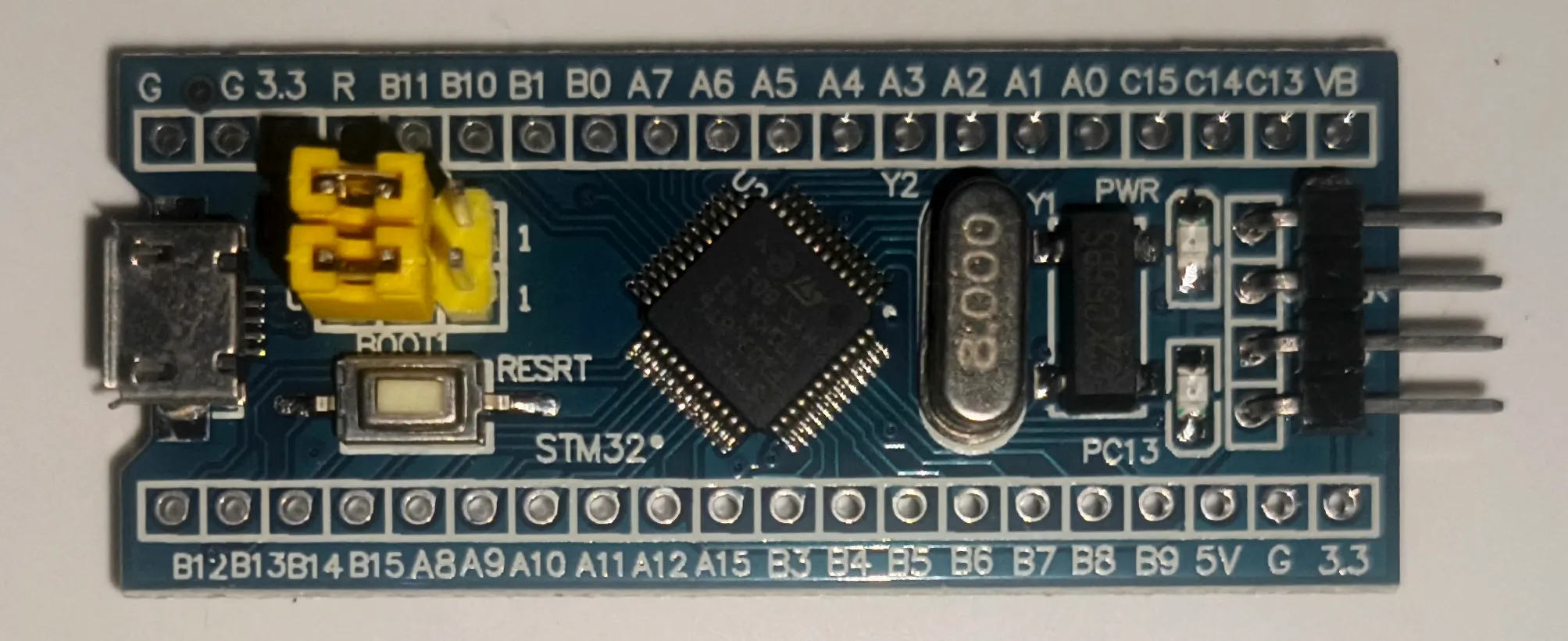
Microcontroller STM32F103C8 (Blue Pill)
The STM32F103C8 (Blue Pill) is a microcontroller powered by a 32-bit ARM Cortex-M3 CPU, with a clock frequency of up to 72MHz, 20KB of SRAM, and flash memory variants of 64KB or 128KB. For more detailed specifications, you can refer to the STM32F103C8 page. In this tutorial, we will be using the STM32F103C8T6 minimum system development board Blue Pill. You can use other boards equipped with the STM32F103C8 microcontroller, such as the old Black Pill or Maple Mini.
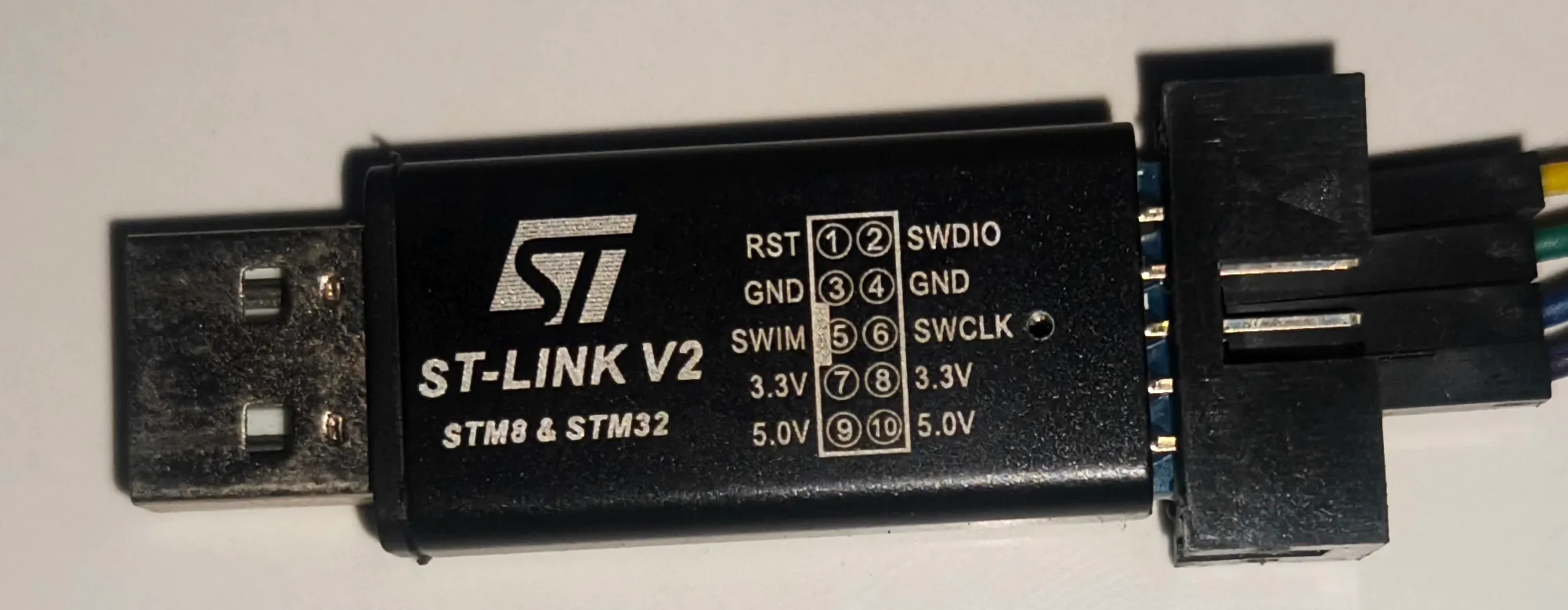
ST-LINK USB Downloader Debuger
The ST-LINK USB Downloader/Debugger acts as the interface between your PC or laptop and the STM32F103C8, allowing us to program the microcontroller directly from the computer. The ST-LINK utilizes the Single Wire Interface Module (SWIM), SWD (Serial Wire Debug), and JTAG interfaces to connect to the STM32. However, the ST-LINK USB Debugger/Downloader we are using this time only supports SWIM and SWD interfaces; therefore, we will be using the SWD interface.
Software Setup
oftware Setup To program the STM32F103C8 using the Rust programming language on Linux, we need to install several essential tools: the Rust toolchain to compile Rust code into binaries, VSCode as the editor for writing and editing code, and probe-rs to load the compiled binaries onto the STM32F103C8.
Installing the Rust Toolchain on Linux
The Rust toolchain acts as the compiler that transforms your written Rust code into binary files that can be executed on the STM32F103C8. To install the Rust toolchain on Linux, you can use the following command:
curl --proto '=https' --tlsv1.2 -sSf https://sh.rustup.rs | sh
This command will install rustup, cargo, rustc, and other essential components required to compile Rust code into binaries. To verify if the installation was successful, use the following command:
rustup --versionrustup 1.28.2 (e4f3ad6f8 2025-04-28)info: This is the version for the rustup toolchain manager, not the rustc compiler.info: The currently active `rustc` version is `rustc 1.90.0 (1159e78c4 2025-09-14)` Since we are programming the STM32F103C8, which uses an ARM Cortex-M3 chip, the Rust toolchain must perform cross-compilation so that the compiled binary can run on the STM32. To do this, the Rust toolchain requires a specific target compiler that matches the STM32F103C8’s CPU architecture, which can be installed using the following command:
rustup target add thumbv7m-none-eabi
Verify the target installation with the following command:
rustup target list --installedthumbv7m-none-eabix86_64-unknown-linux-gnuNote: Below are the supported Rust target compilers for 32-bit ARM architectures:
- thumbv6m-none-eabi: Cortex-M0, Cortex-M0+
- thumbv7m-none-eabi: Cortex-M3
- thumbv7em-none-eabi: Cortex-M4, Cortex-M7 (without FPU)
- thumbv7em-none-eabihf: Cortex-M4F, Cortex-M7F (with FPU)
Installing VSCode on Linux
We will be using Visual Studio Code (VSCode) to write and edit our code. However, you may use any other code editor of your choice. To install VSCode on Fedora, you can use the following commands, if you are using a different distribution, you can refer to the official VSCode Installation page for installation instructions.
sudo rpm --import https://packages.microsoft.com/keys/microsoft.asc && \echo -e "[code]\nname=Visual Studio Code\n\baseurl=https://packages.microsoft.com/yumrepos/vscode\n\enabled=1\n\autorefresh=1\n\type=rpm-md\n\gpgcheck=1\n\gpgkey=https://packages.microsoft.com/keys/microsoft.asc" \| sudo tee /etc/yum.repos.d/vscode.repo > /dev/nulldnf check-update && sudo dnf install codeNext, install the Rust Analyzer extension to assist us in writing Rust code within VSCode. This extension provides automatic autocomplete and auto-import features as you write your code.
- Open VSCode
- Select the Extenstion tab
- Search for Rust Analyzer
- Click Install
Installing probe-rs on Linux
probe-rs is a tool used to flash the compiled Rust binaries onto the STM32F103C8. To install probe-rs on Linux, you can use the following command:
curl -LsSf https://github.com/probe-rs/probe-rs/releases/latest/download/probe-rs-tools-installer.sh | shInstalling Flip-Link on Linux
flip-link functions to prevent memory corruption caused by stack overflows by flipping the memory layout on the SRAM. In a standard SRAM layout, if a stack overflow occurs (where stack memory usage exceeds its capacity), the stack will overwrite static variables. This causes the microcontroller to experience undefined behavior. By using flip-link, this issue can be avoided. To install flip-link on Linux, you can use the following command:
cargo install flip-linkProgramming the STM32F103C8 with Rust
The following are the steps we will take to program the STM32F103C8 with Rust.
- Writing and Editing the Rust Source Code
- Compile Rust source code into binary
- Flash the binary to the STM32F103C8
Be sure to repeat these steps every time you make changes to your Rust code.
Creating Your First Rust Program
First, we will create a new Rust project. Create a new folder named “hello-stm32”. Open VSCode, then go to the “File” menu and select “Open Folder” to open your “hello-stm32” folder. Next, in VSCode, go to the “Terminal” menu and select “New Terminal”. In the newly opened terminal, type the following command to initialize a new Rust project:
cargo init --binIn the “Explorer” tab, the Rust project files that we will edit later will appear. Next, create a new file named “memory.x” inside the “hello-stm32” folder and add the following code:
1//* memory.x - Linker script for the STM32F103C8T6 */
2MEMORY
3{
4  /* Flash memory begins at 0x80000000 and has a size of 64kB or 128kB*/
5  FLASH : ORIGIN = 0x08000000, LENGTH = 64K
6  /* RAM begins at 0x20000000 and has a size of 20kB*/
7  RAM : ORIGIN = 0x20000000, LENGTH = 20K
8}
This file informs the linker about the location and size of the Flash and RAM memory on the STM32F103C8 microcontroller.
Note: We are using the STM32F103C8T6 with the 64kB Flash size. If you are using a different STM32F103 variant, please adjust the FLASH LENGTH and RAM LENGTH according to the datasheet, which can be found in the Memory Mapping section.
The following are several variants of the STM32F103C:
| Varian | Flash Length | RAM Length | Density |
|---|---|---|---|
| STM32F103C4 | 16K | 6K | Low-density |
| STM32F103C6 | 32K | 10K | Low-density |
| STM32F103C8 | 64K/128K | 20K | Medium-density |
| STM32F103CB | 128K | 20K | Medium-density |
Next, we will configure the Rust project to perform cross-compilation for the ARM Cortex-M3 CPU so that it can run on the STM32F103C8. Inside the ‘hello-stm32’ folder, create a new folder named “.cargo”. Inside that folder, create a new file named “config.toml” and add the following code:
Toml
1# Specify CPU target
2[build]
3target = "thumbv7m-none-eabi"
Specifying the target CPU. Since the STM32F103C8 utilizes a Cortex-M3 core, we will set the target to thumbv7m-none-eabi .
Pro Tip: Below is an explanation of the Rust target triple:
thumbv7m: Indicates the CPU architecture for the Cortex-M3.none: Indicates that no operating system is used. This means the program runs directly as bare metal rather than on top of an OS.eabi: Uses the Embedded Application Binary Interface.To view all targets supported by the Rust toolchain, you can use the following command: ‘
rustup target list’.
Toml
1# Automaticly flash program to the STM32F103C8 when running the 'cargo run' command
2[target.thumbv7m-none-eabi]
3runner = ["probe-rs", "run", "--chip", "STM32F103C8Tx", "--log-format=oneline"]
Configuring the runner for the thumbv7m-none-eabi target. This configuration allows us to execute a specific command whenever ‘cargo run’ is invoked in the Rust project directory. When you run ‘cargo run’, Cargo will build the project and then automatically execute ‘probe-rs run --chip STM32F103C8Tx --log-format=oneline’ to flash the program onto the STM32F103C8 microcontroller.
Note: If you are using a different microcontroller, you can replace the ’
--chip’ parameter accordingly. You can check the complete list of microcontrollers or chips supported byprobe-rsby running the command ‘probe-rs chip list’
Toml
 1rustflags = [
 2    "-C",
 3    "linker=flip-link",   # Using the flip-link linker to prevent undefined behavior in the event of a stack overflow.
 4    "-C",
 5    "link-arg=-Tlink.x",  # Tells the linker to use Tlink.x provided by the 'cortex-m-rt' crate.
 6    "-C",
 7    "link-arg=-Tdefmt.x", # Using specific linker instructions required by the 'defmt' crate.
 8    "-C",
 9    "link-arg=--nmagic",  # Disabling page alignment to save flash memory.
10]
Defining the Rust toolchain flags for the compilation process.
 1# Specify CPU target
 2[build]
 3target = "thumbv7m-none-eabi"
 4
 5# Automaticly flash program to the STM32F103C8 when running the 'cargo run' command
 6[target.thumbv7m-none-eabi]
 7runner = ["probe-rs", "run", "--chip", "STM32F103C8Tx", "--log-format=oneline"]
 8
 9rustflags = [
10    "-C",
11    "linker=flip-link",   # Using the flip-link linker to prevent undefined behavior in the event of a stack overflow.
12    "-C",
13    "link-arg=-Tlink.x",  # Tells the linker to use Tlink.x provided by the 'cortex-m-rt' crate.
14    "-C",
15    "link-arg=-Tdefmt.x", # Using specific linker instructions required by the 'defmt' crate.
16    "-C",
17    "link-arg=--nmagic",  # Disabling page alignment to save flash memory.
18]
Now, our Rust project structure will look like this:
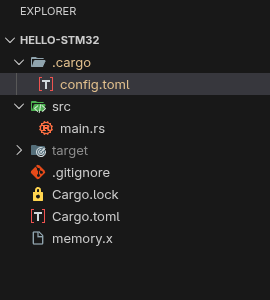
Next, we will add the libraries required for our Rust project. Open the “Cargo.toml” file and add the following code:
 1[[bin]]
 2name = "hello-stm32"
 3path = "src/main.rs"
 4test = false # To prevent errors resulting from the absence of a test module.
 5bench = false # To prevent errors resulting from the absence of a test module.
 6
 7[dependencies]
 8# Accessing the core features of the ARM Cortex-M processor.
 9cortex-m = { version = "0.7.7", features = ["critical-section-single-core"] }
10# Setting up the program entry point and handling system errors.
11cortex-m-rt = "0.7.5"
12# Hardware Abstraction Layer (HAL) to simplify accessing STM32F103C8 features.
13stm32f1xx-hal = { version = "0.11.0", features = ["stm32f103", "medium"] }
14# For debugging to a PC/laptop terminal.
15semihosting = { version = "0.1.21", features = ["stdio"] }
16# Specific panic handler designed for use with probe-rs.
17panic-probe = { version = "1.0", features = ["print-defmt"] }
18# Formatting message for debugging
19defmt = "1.0.1"
20# Send message to the terminal PC/laptop
21defmt-rtt = "1.1.0"
22
23[profile.dev]
24opt-level = 's'
25codegen-units = 1
26
27[profile.release]
28opt-level = 'z'
29lto = true
Next, the part we’ve all been waiting for, editing the Rust program code. Open the “src/main.rs” file and fill it with the following code:
 1// Do not use the Rust standard library
 2#![no_std]
 3// Tells the Rust toolchain that this program does not run on an Operating System.
 4#![no_main]
 5
 6use defmt_rtt as _;
 7use panic_probe as _;
 8use stm32f1xx_hal as _;
 9use cortex_m_rt::entry;
10use defmt:: Format;
11
12// Creates a new struct that implements the 'Format' trait from the 'defmt' crate/library.
13#[derive(Format)]
14struct Person {
15    name: &'static str,
16    age: u8,
17}
18
19// The main function serves as the program's entry point.
20#[entry]
21fn main() -> ! {
22
23    // Send message to the terminal PC/laptop
24    defmt::println!("Hello dari STM32F103C8T6");
25
26    let yogi = Person {
27        name: "Yogi Astawan",
28        age: 20,
29    };
30    // Sends formatted messages to the PC/laptop terminal.
31    defmt::println!("{:?}", yogi);
32    // Terminating the semihosting session upon program completion.
33    semihosting::process::exit(0);
34
35}
Running the Rust Program on the STM32F103C8
Before running the program we have created, we must connect the ST-LINK USB Downloader Debugger to the STM32F103C8 using SWD interface. Here, I am using female-to-female jumper wires to connect the ST-LINK pins to the STM32F103C8 pins as follows:
| No. | ST-LINK | STM32F103C8 |
|---|---|---|
| 1 | 3.3V | 3V3 |
| 2 | SWIO | SWIO |
| 3 | SWCLK | SWCLK |
| 4 | GND | GND |
Plug the ST-LINK USB Downloader Debugger into your PC/laptop’s USB port. Then, to run the program, type the following command in the VS Code terminal:
cargo run
The following is the result of the program running on the target hardware:
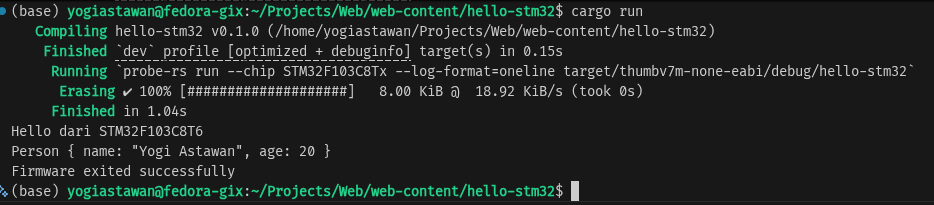
In the next post, we will explore how to access the STM32F103C8 Input and Output pins using the Rust language.
Common Issues and Solutions
The following are some of the challenges we faced during the development of this tutorial:
- Error: No connected probes were found occurred when executing cargo run. To resolve this, ensure that the ST-LINK is properly connected to your PC/laptop; this can be verified by checking that the power indicators on both the ST-LINK and the STM32F103C8 are lit. Occasionally, we also resolved the issue by unplugging and reconnecting the ST-LINK to the PC/laptop.
If you have any questions, feedback, or suggestions, please feel free to contact us through our contact page.