Fixing Gemini Flickering Issues on Lenovo Xiaoxin
In 2025, I updated the operating system to version 1.1.10.680 on my Lenovo Xiaoxin tablet. However, after the update was completed, I noticed that when opening the Gemini app, the display started flickering rapidly. All menus and buttons within the Gemini app became unresponsive and could not be clicked. Consequently, I tried to close the app by pressing the Home button. For your information, I am using the Lenovo Xiaoxin Tablet, model TB331FC.
Issues Encountered
The Gemini app experiences rapid screen flickering when opened on the Lenovo Xiaoxin tablet following an operating system update.
How to Fix the Issue
In fact, resolving this problem is quite simple: reinstall the Google app. Here are the steps to fix the flickering issue:
Uninstalling the Google App
The first step is to uninstall the Google app. Here is how to do it:
Open the tablet
Settings.Click on the
Apps menu.Then, click
All Apps.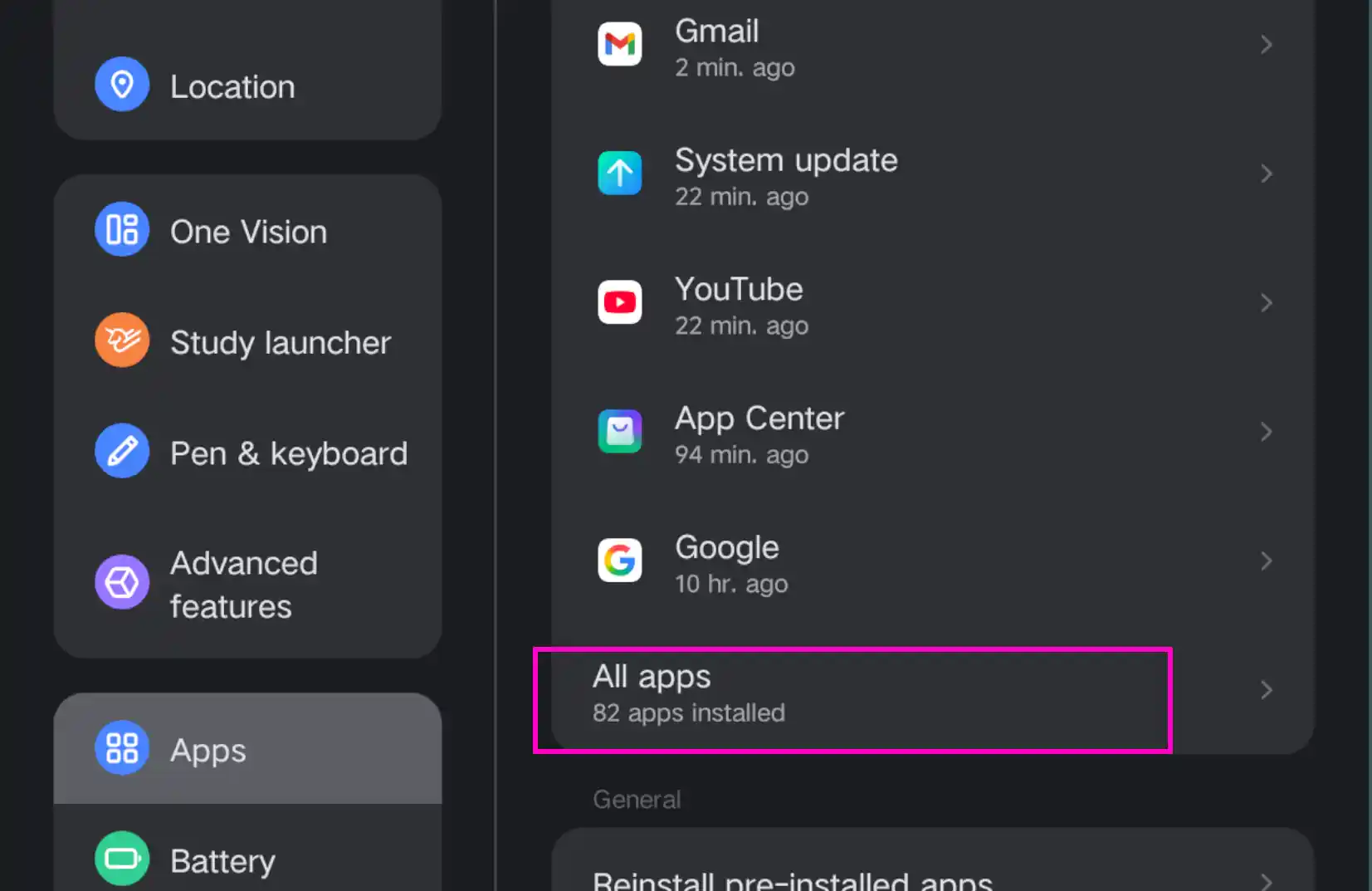
Click the All Apps menu in Settings Find and click on
Google.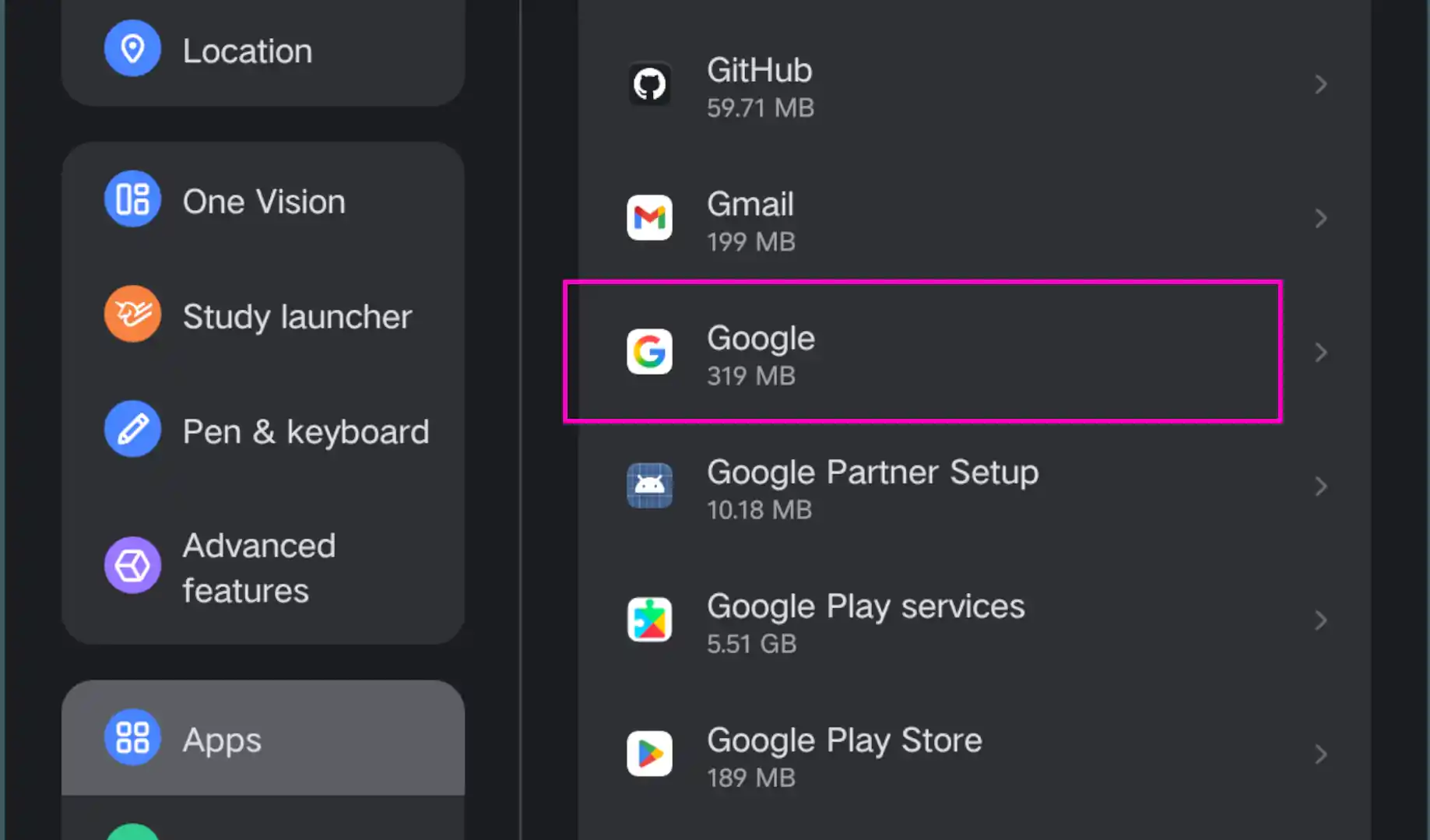
Select the Google App Click
Storage & cache.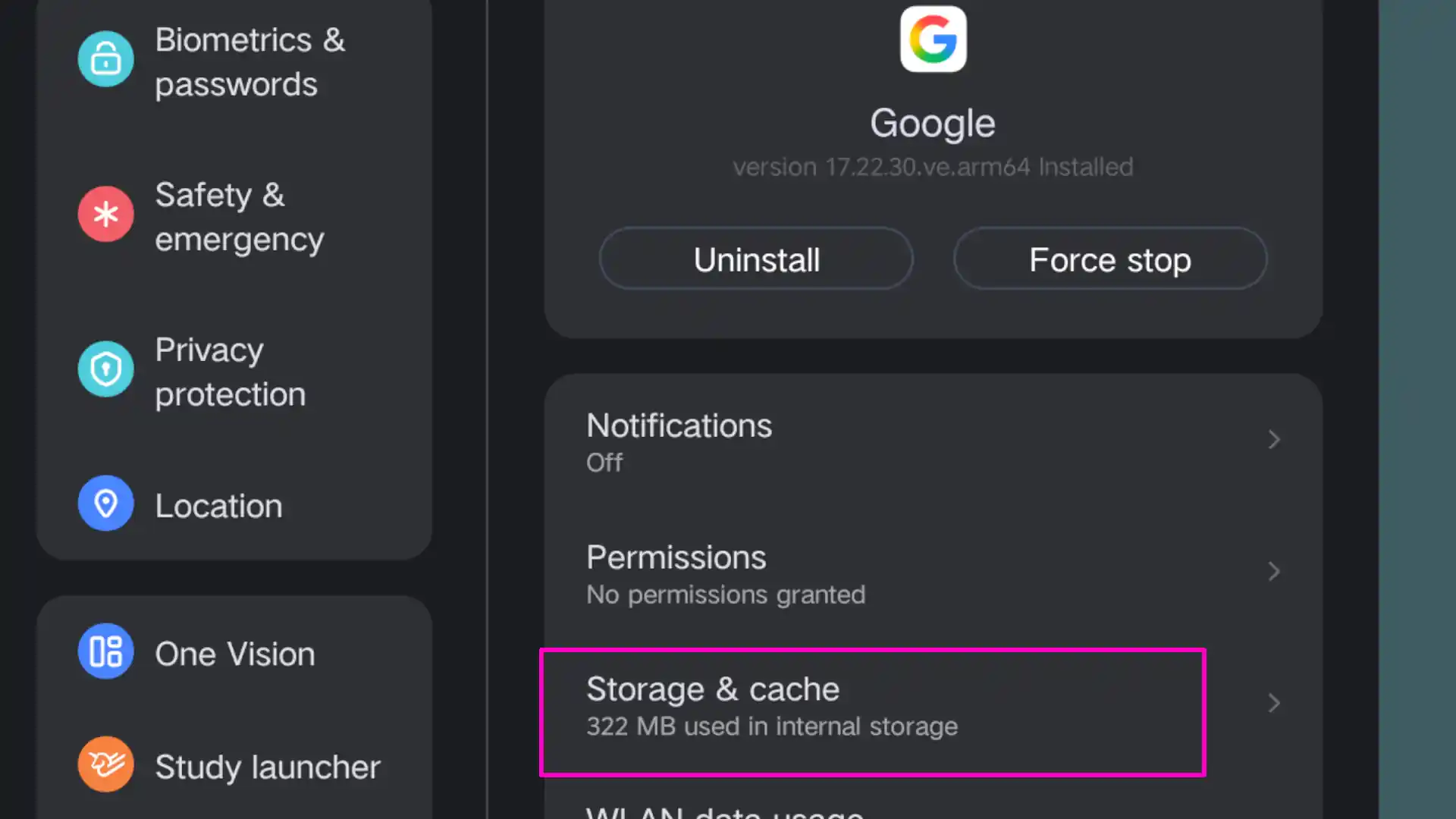
Click Storage & cache Click
Clear cacheandClear storage.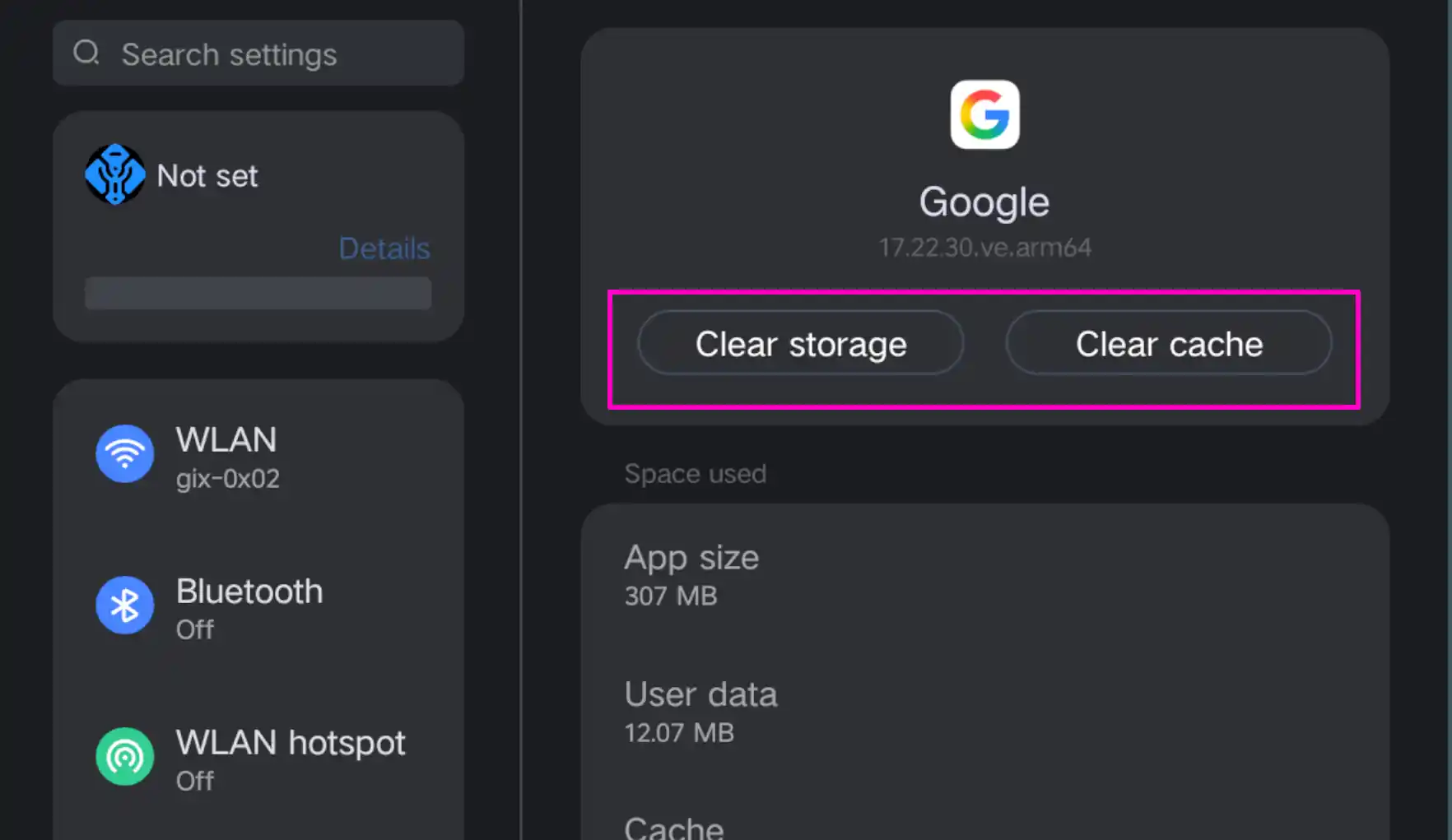
Click Clear Storage and Clear Cache Press the Back button, then click
Uninstall.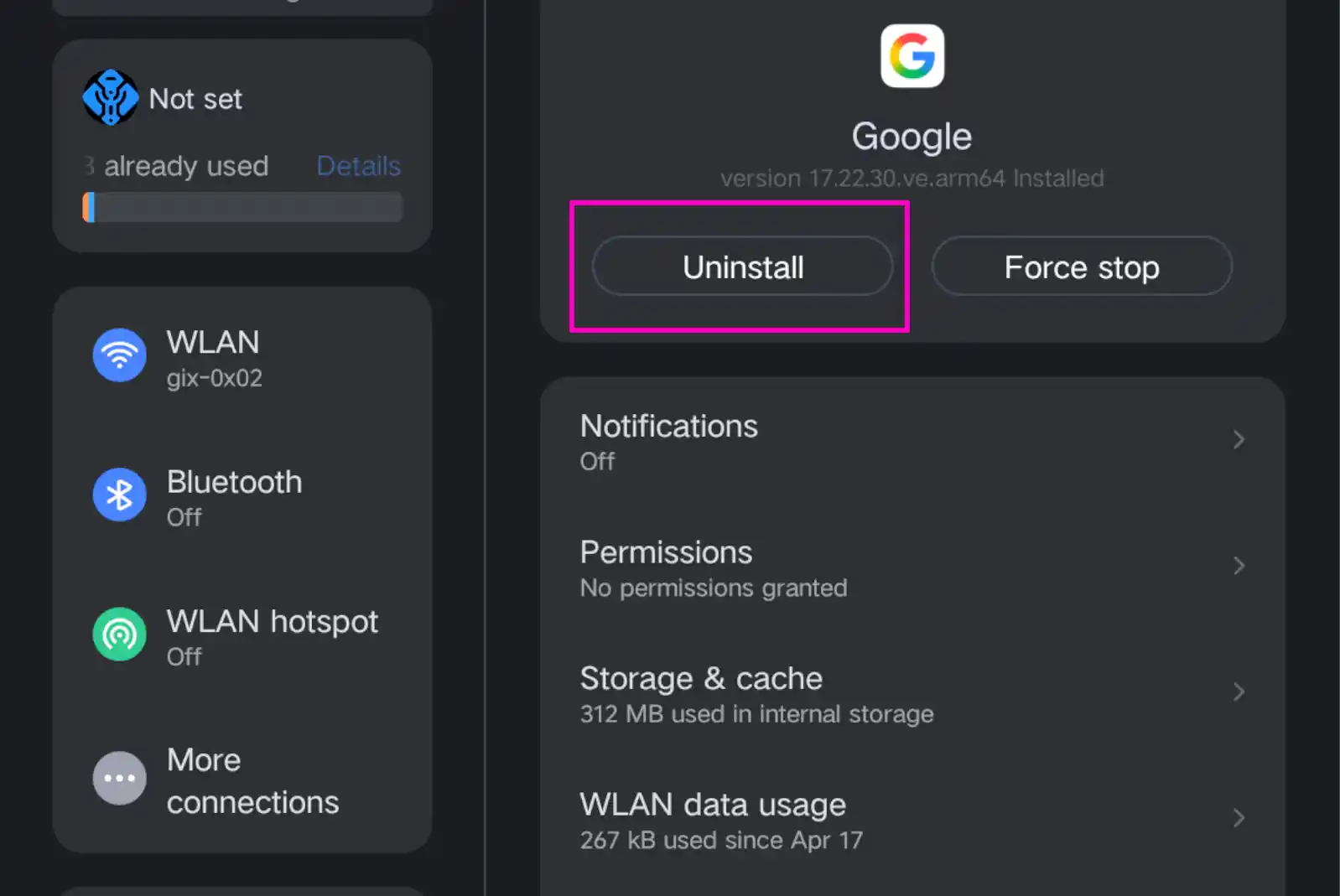
Click Uninstall on the Google App
Alternatively, you can uninstall the Google app by long-pressing the Google app icon on the launcher, then tapping the trash bin icon.
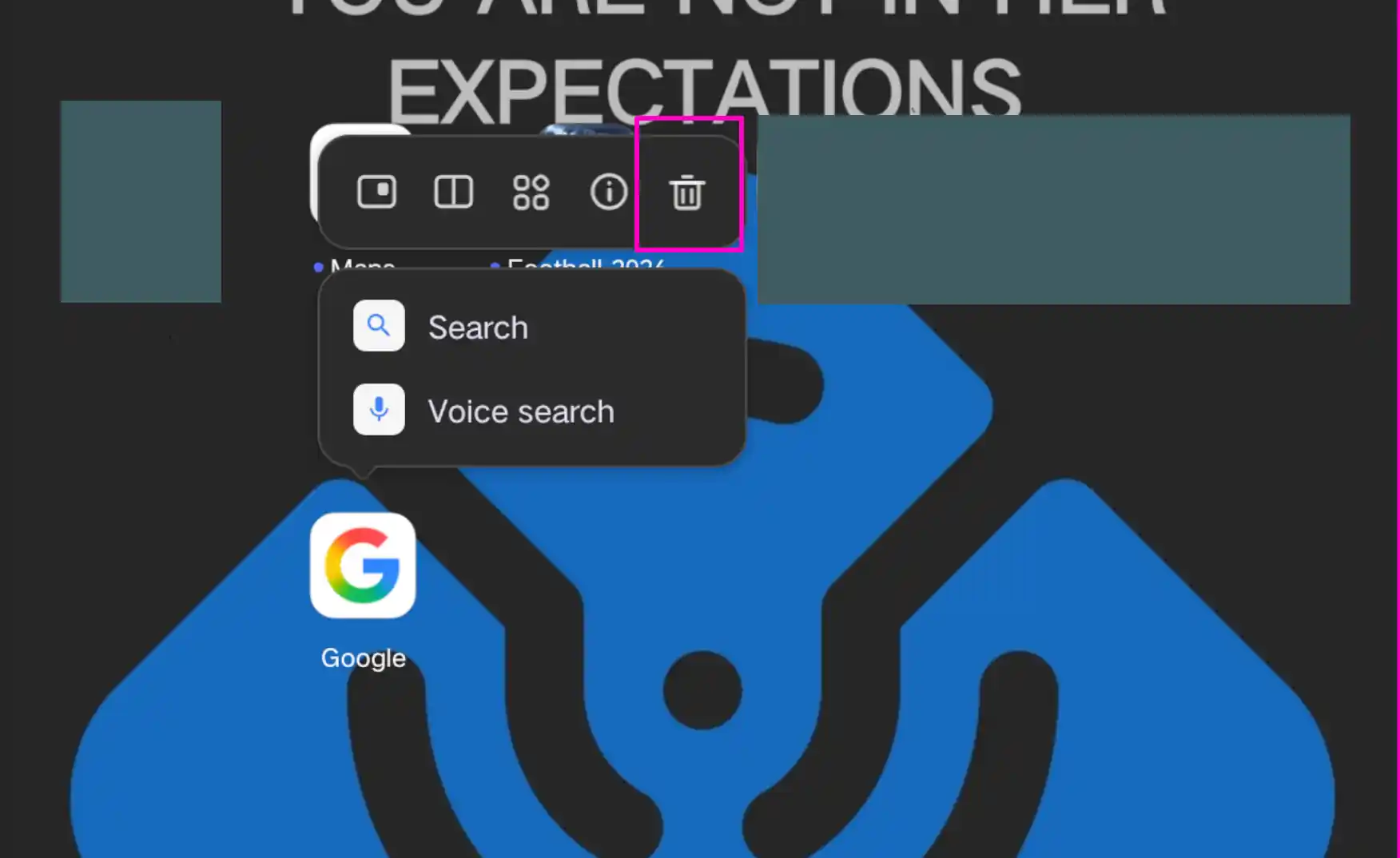
A confirmation dialog will appear and select Uninstall.
Note: Make sure to perform
Clear storageandClear cachebefore uninstalling the Google app.
Opening the Gemini App
Once the Google app is uninstalled, open the Gemini app. A notification will appear prompting you to install the Google app. Follow these steps:
Tap the
Go to Play Storebutton to install it.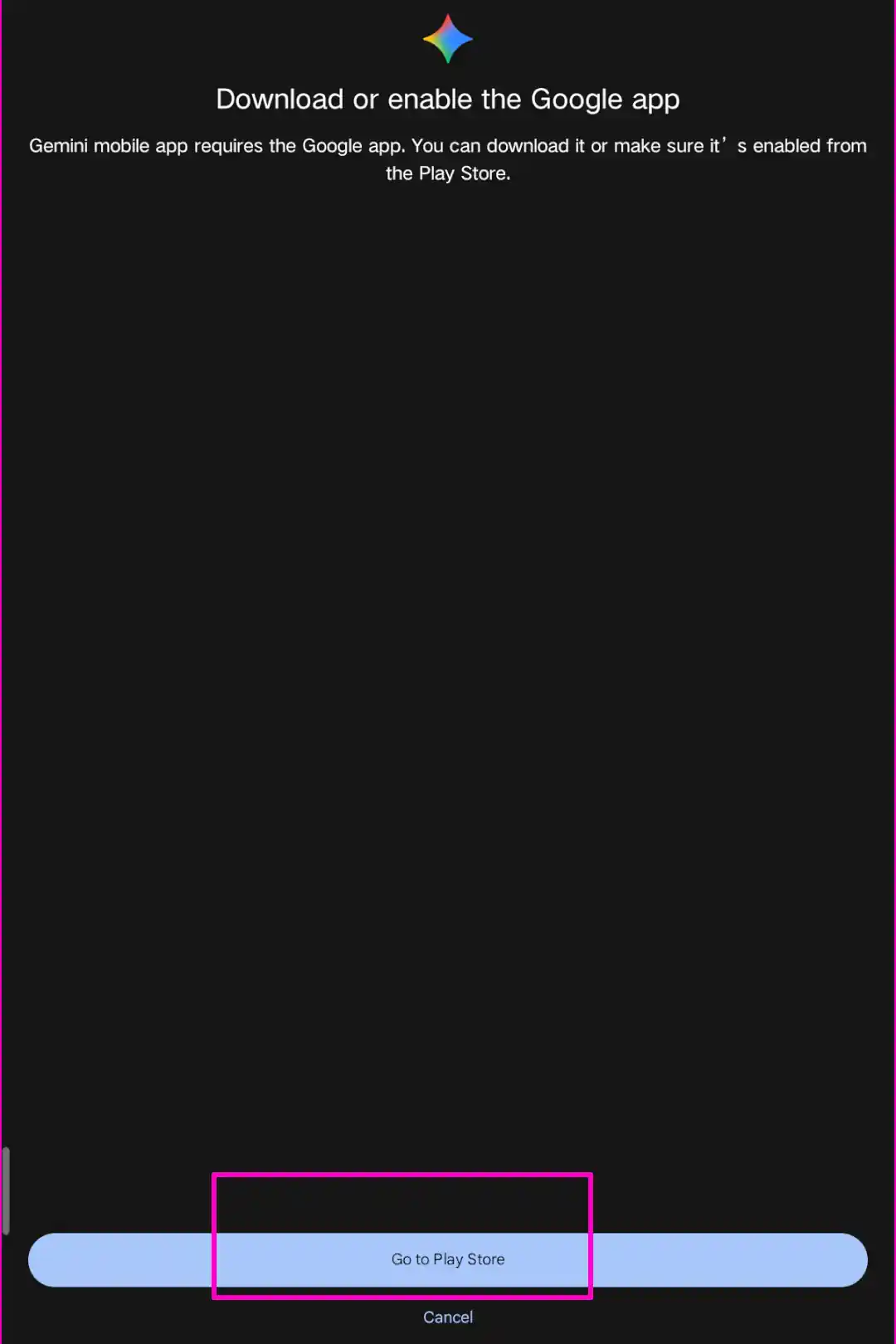
Click the Go to Play Store button to install the Google App In the Play Store, click the
Installbutton.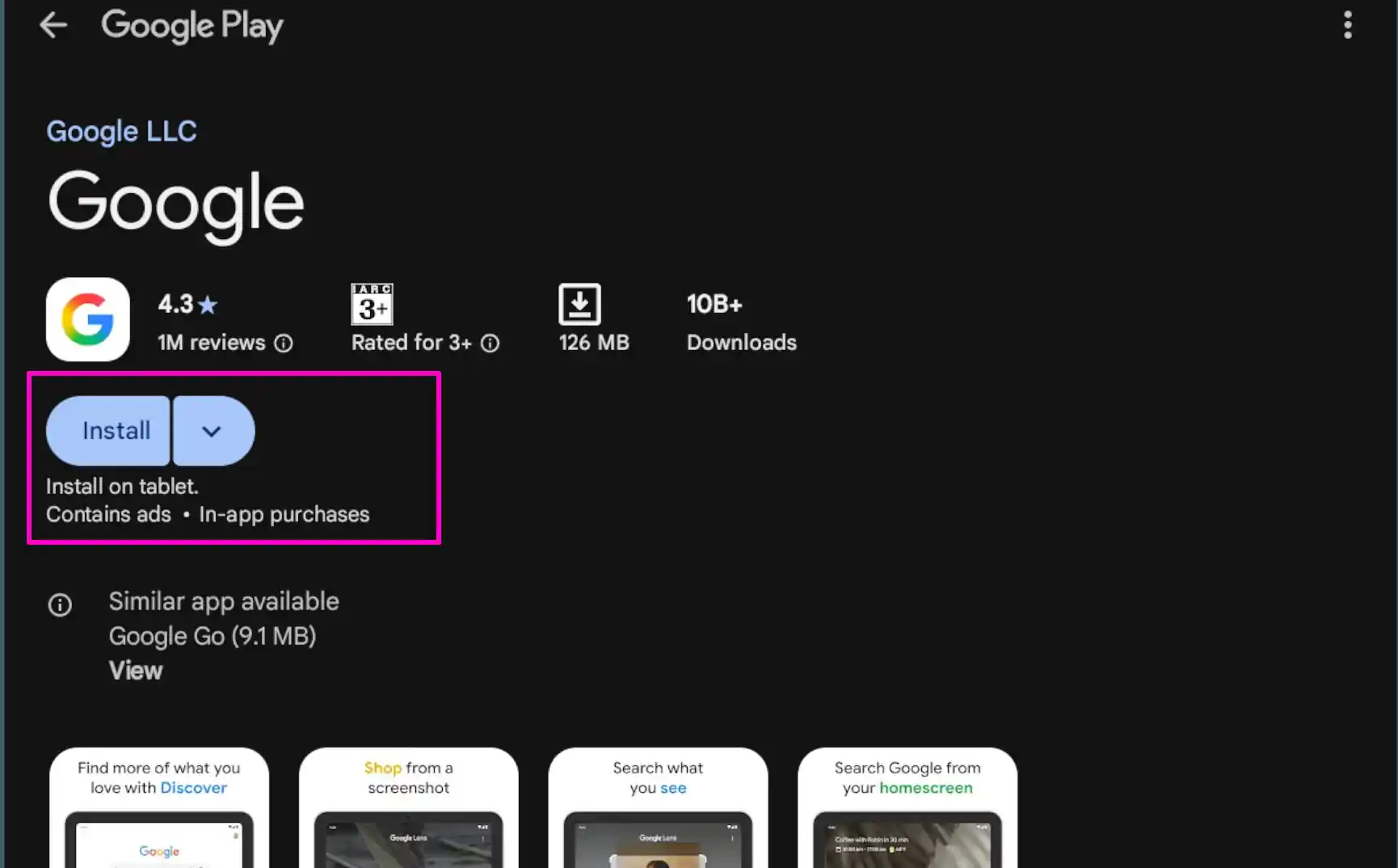
Click Install in the Play Store Re-open the Gemini app. The app should now function normally without any flickering.
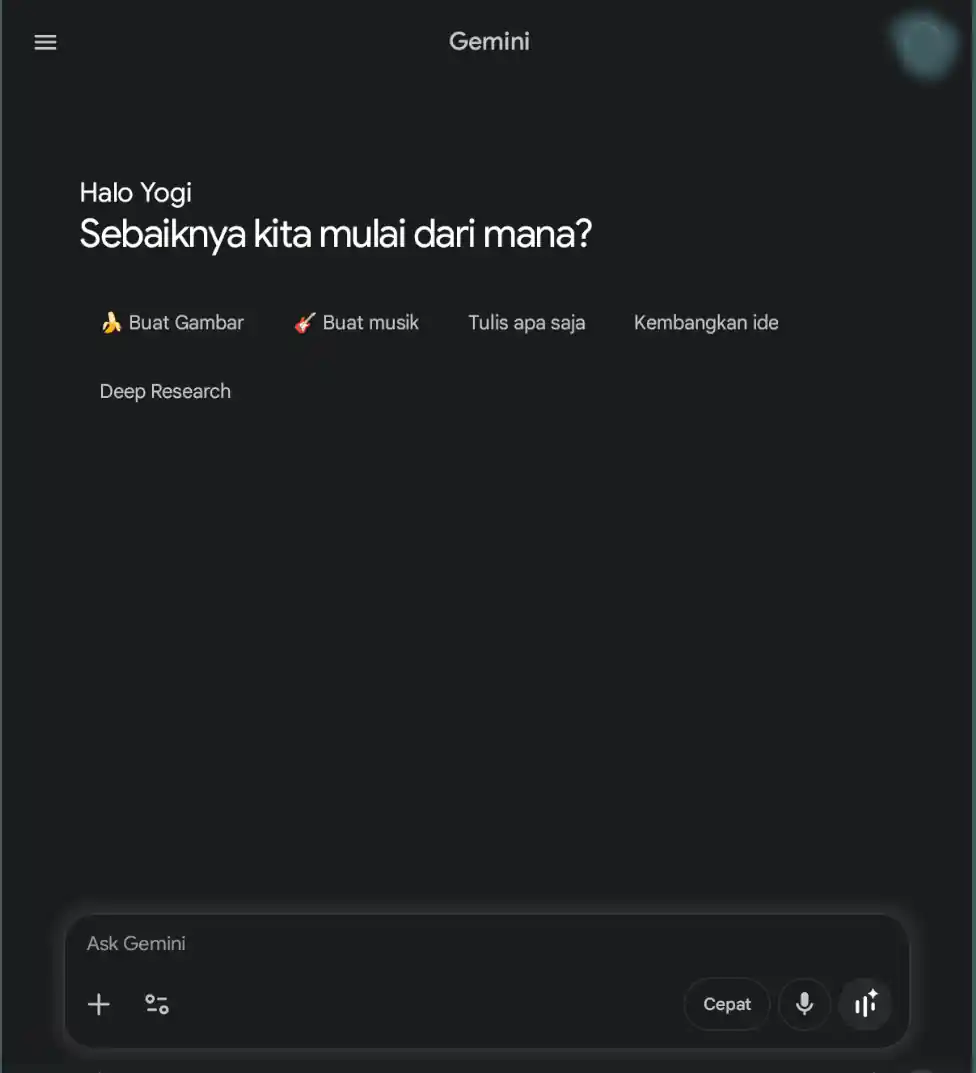
Gemini Running Normally
That is how to resolve the rapid flickering issue in the Gemini app. If you encounter any difficulties following the steps above, please feel free to reach out to me through the contact page